
How-To . . . in WordsPub
Follow these Steps to learn How-To:
[To find out how to create .ePub versions of your files for upload, click: here.]
The app has been tested extensively on Google Chrome and Safari. At this time we recommend you use these browsers to access the full feature set of myLibrary. We are continuing to develop and improve functionality on iOS devices (iPhone and iPad) android phones, as well as other browser platforms.
NOTE: The app is NOT YET AVAILABLE IN the Google PlayStore or Apple AppStore.
Make sure you are running the most current version of Google Chrome or Safari to enjoy the full functionality of myLibrary.
Some features of the app are still under development (print-on-demand, calendar, expert directory). Please let us know what features you want and what recommendations you might have.
Sign In with Apple, Microsoft or Google
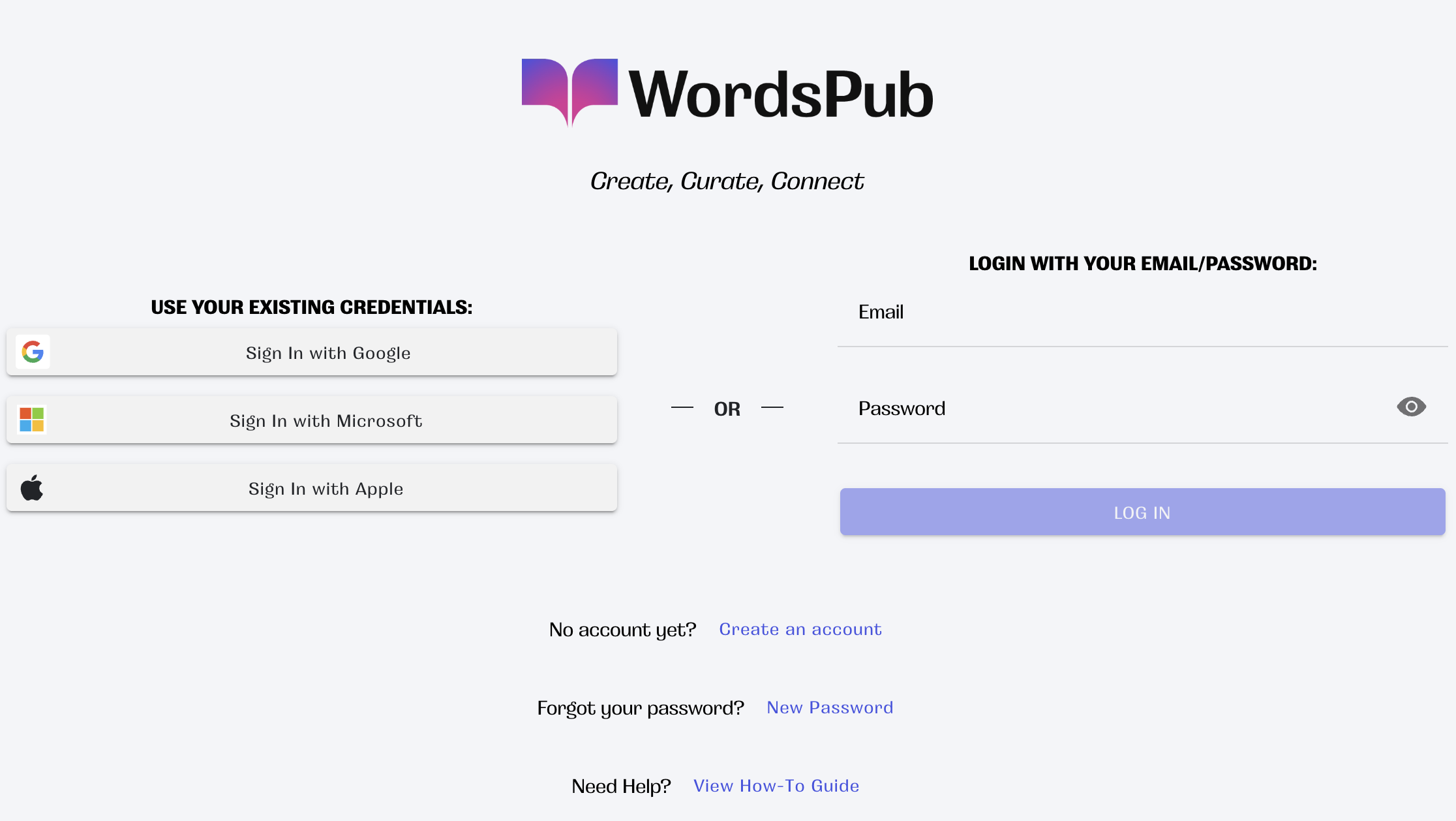
Open a new browser tab (Chrome or Safari are recommended).
Go to app.wordspub.com/login
At left, click on “Sign In with … ” your existing email + password combination for either Google/Gmail, Apple, or Microsoft/Outlook.
Follow the prompts in the Pop-up. These prompts are specific to Google/Apple/MS, respectively.
NOTE: If you have pop-up blockers installed for your browser, please disable them or use a different browser.If you are not redirected (this might take a few seconds and depends on your device settings), go to app.wordspub.com/login, where you now have access to your account. As a default, most browsers will remember your login until you manually log out.
To create a custom email/password combination click on
‘No account yet? Create an account’ at center below the sign in options.
Create a new Account
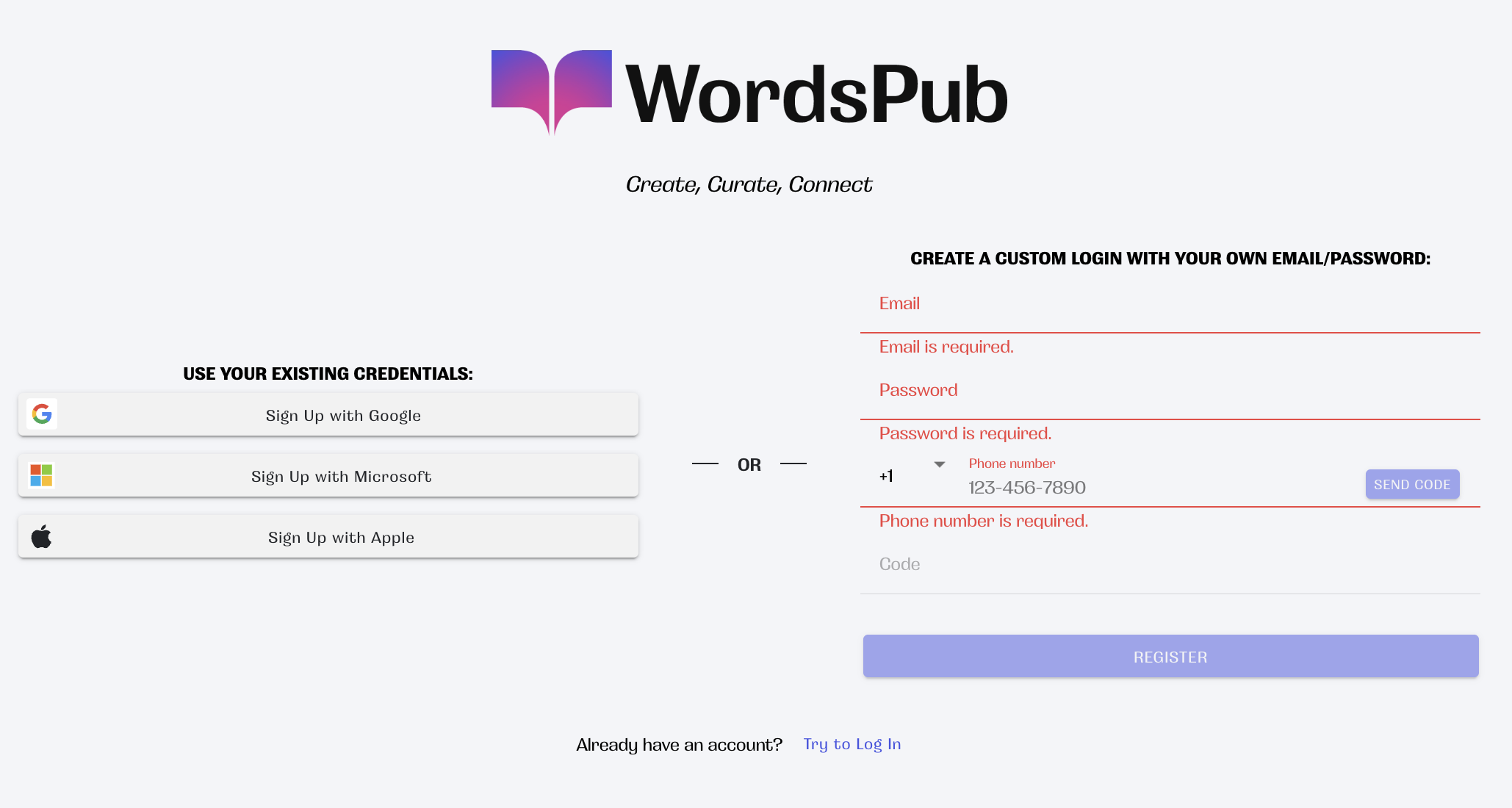
Open a new browser tab (Chrome or Safari are recommended).
At right, enter your preferred email address for your myLibrary account (you must have access to the email inbox for this email address, please ensure it is spelled correctly).
Enter a secure memorable password.
Record your email and password for future access to WordsPub.
Enter your mobile/cellular phone number. You will need access to your phone and texting app.
Click “SEND CODE.”
Click “REGISTER.”
Follow the prompts.
If you are not redirected (this might take a few seconds and depends on your device settings), go to app.wordspub.com/login, where you now have access to your account. As a default, most browsers will remember your login until you manually log out.
Get content
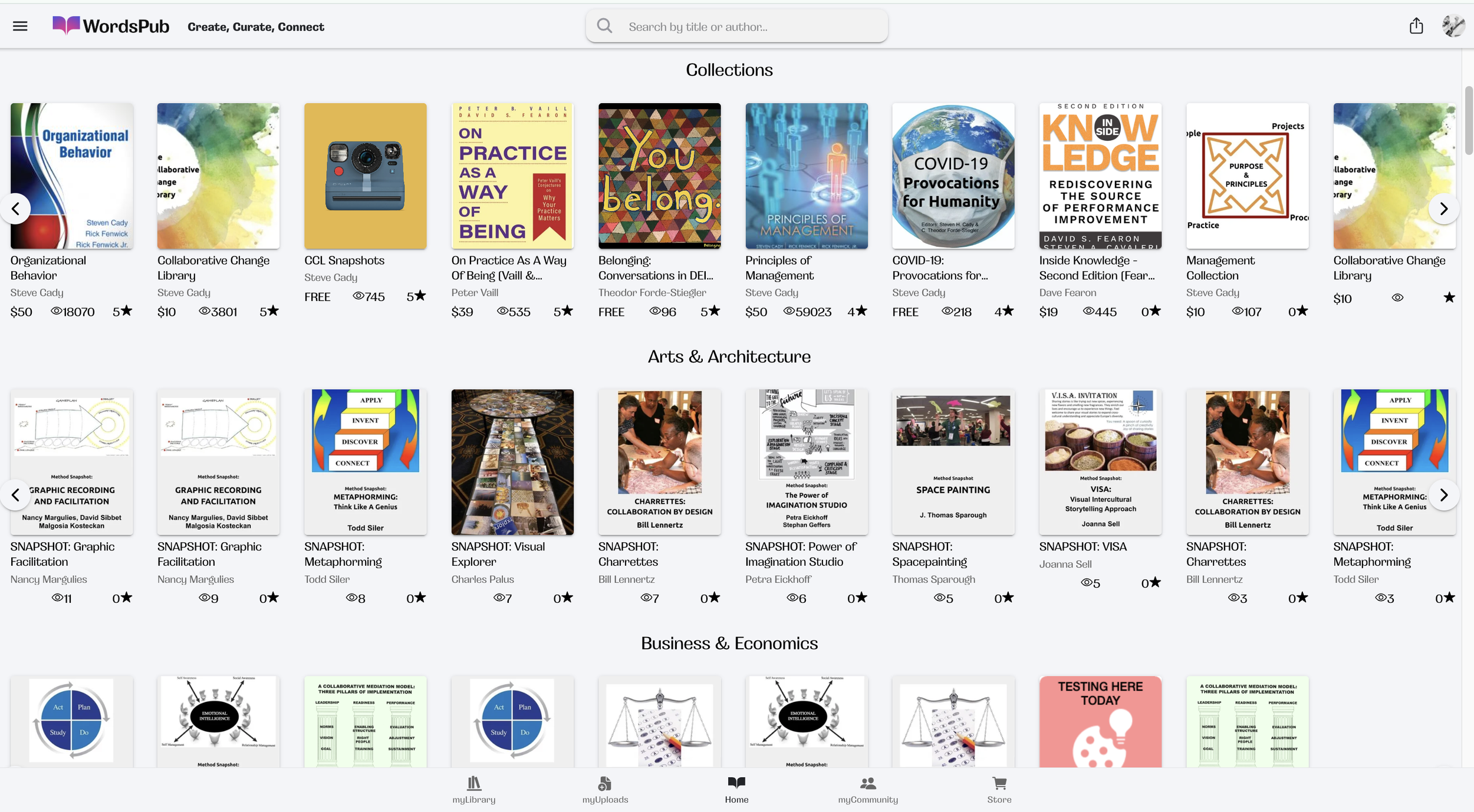
Preview all content by simply clicking on the title or cover of a selection.
WordsPub offers a wide variety of content. You can always preview our content, but once you have created an account and are logged in:
You can read free content at: app.wordspub.com
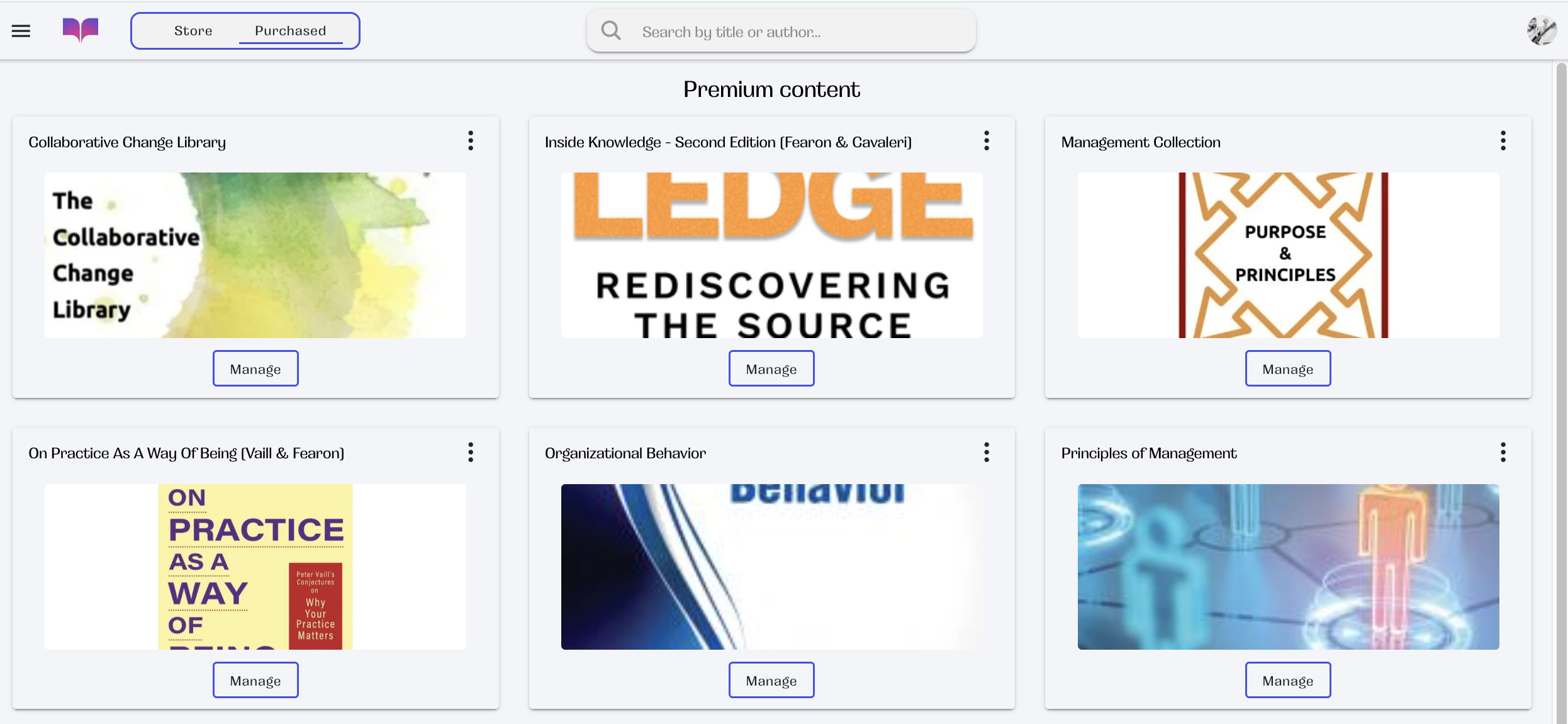
Check out our store (click on the menu icon at top left, or the ‘Store’ icon at bottom right of your screen), which offers subscription content and select one-time purchase content at app.wordspub.com/store
To purchase content, click the ‘GET’ button, which will redirect you to submit a payment in our payment portal, Stripe.
PLEASE NOTE: For Kendall Hunt textbooks, you must first purchase an access code on KH’s website for Principles of Management and/or Organizational Behavior, respectively.
Use a Promo Code
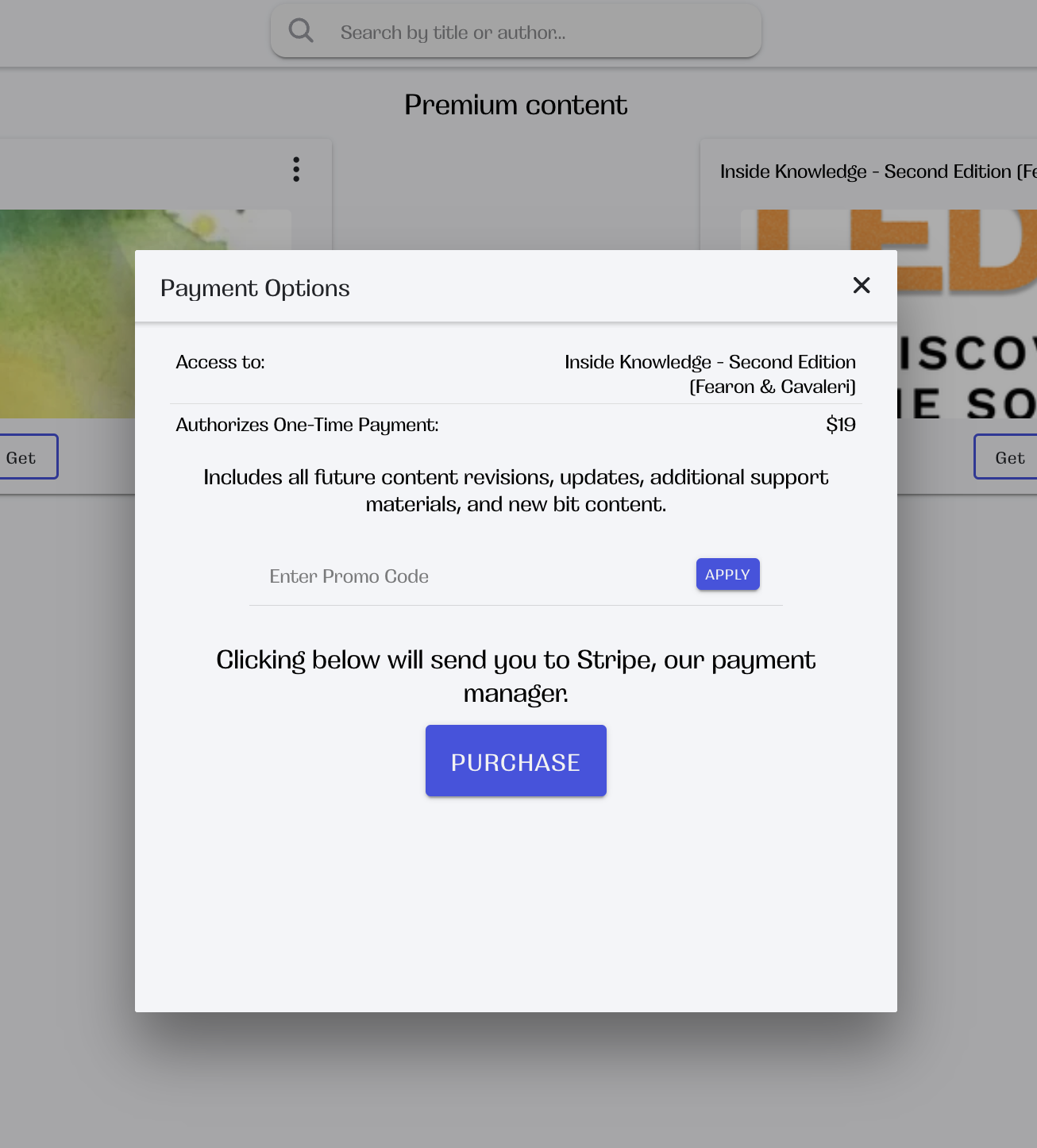
Click on the “GET” button for the content you want to apply a promotional code to.
The Payment Options pop-up will open for you to “Enter Promo Code” at center.Enter the Promo Code.
Hit “APPLY.”
Enjoy!
Use the ‘waffle’
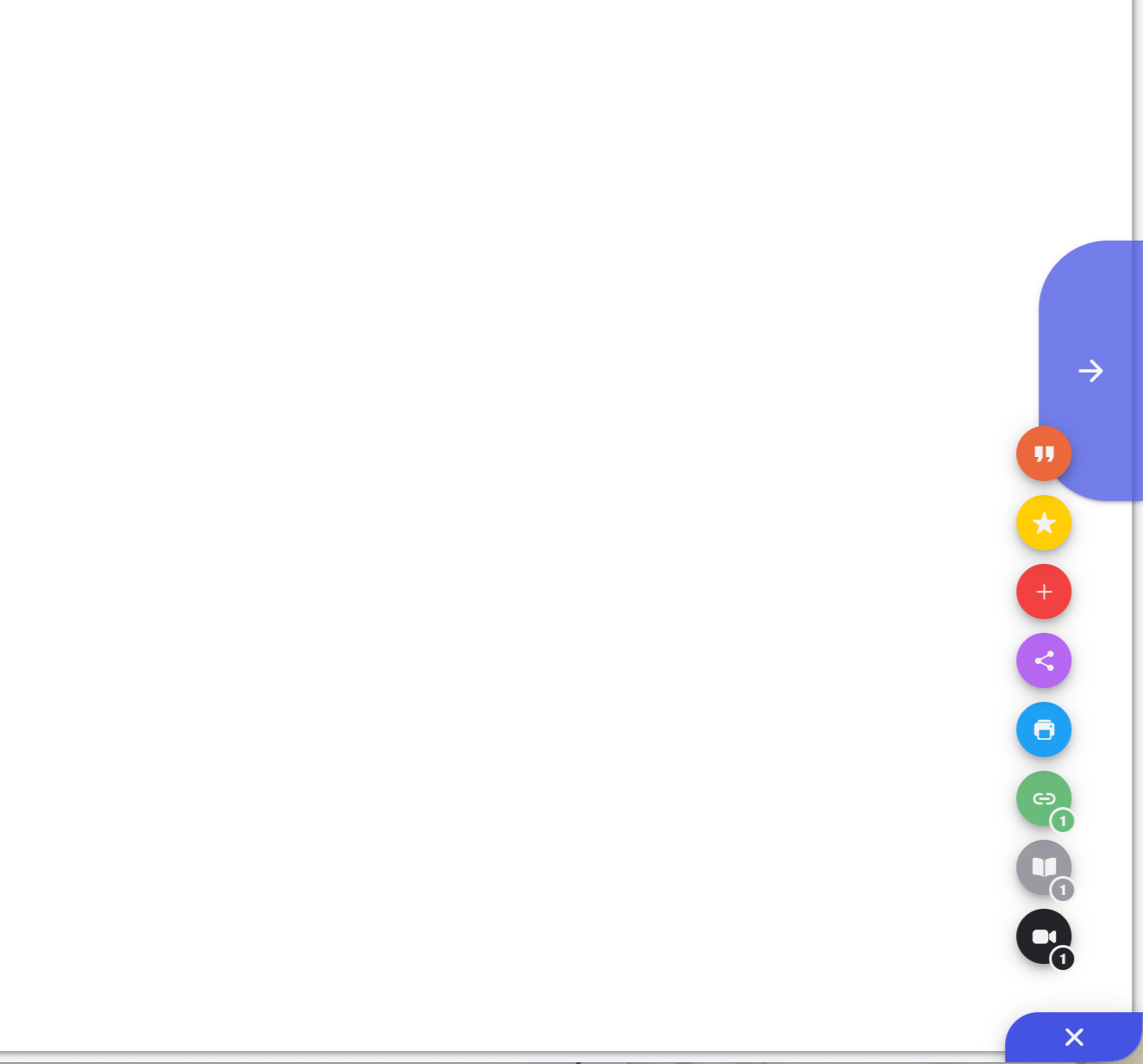
To access the multimedia resources and additional features for each selection, click on the ‘waffle’ icon in the bottom right corner of your reading screen:
quotation mark - citation information
yellow star icon - rate content
red plus - add the content selection to a playlist (see below for more)
purple share icon - share the content
blue printer - print-on-demand (currently in development)
green paperclip - view relevant links to additional content
grey book - view additional resources, templates, snippets, etc.
black camera - video and audio content
curate your own content ‘playlists’ and collections

To “build a book,” with custom content you want to curate for a class, a client, . . . - you can add content to a custom book for your personal customized “myLibrary” tab in several ways:
A. In scroll or flip mode for any chapter/essay/content piece, click on the ‘waffle icon’ on the bottom right corner of your screen, and select the red + icon. This will allow you to “Add To…” a new or existing book.
B. In the overview for a volume or set of content, click the︙menu for any content piece and select “Add to Book”
Once you have started building books, check your “myLibrary” tab for more options to organize your customized content.
Use the app on Android
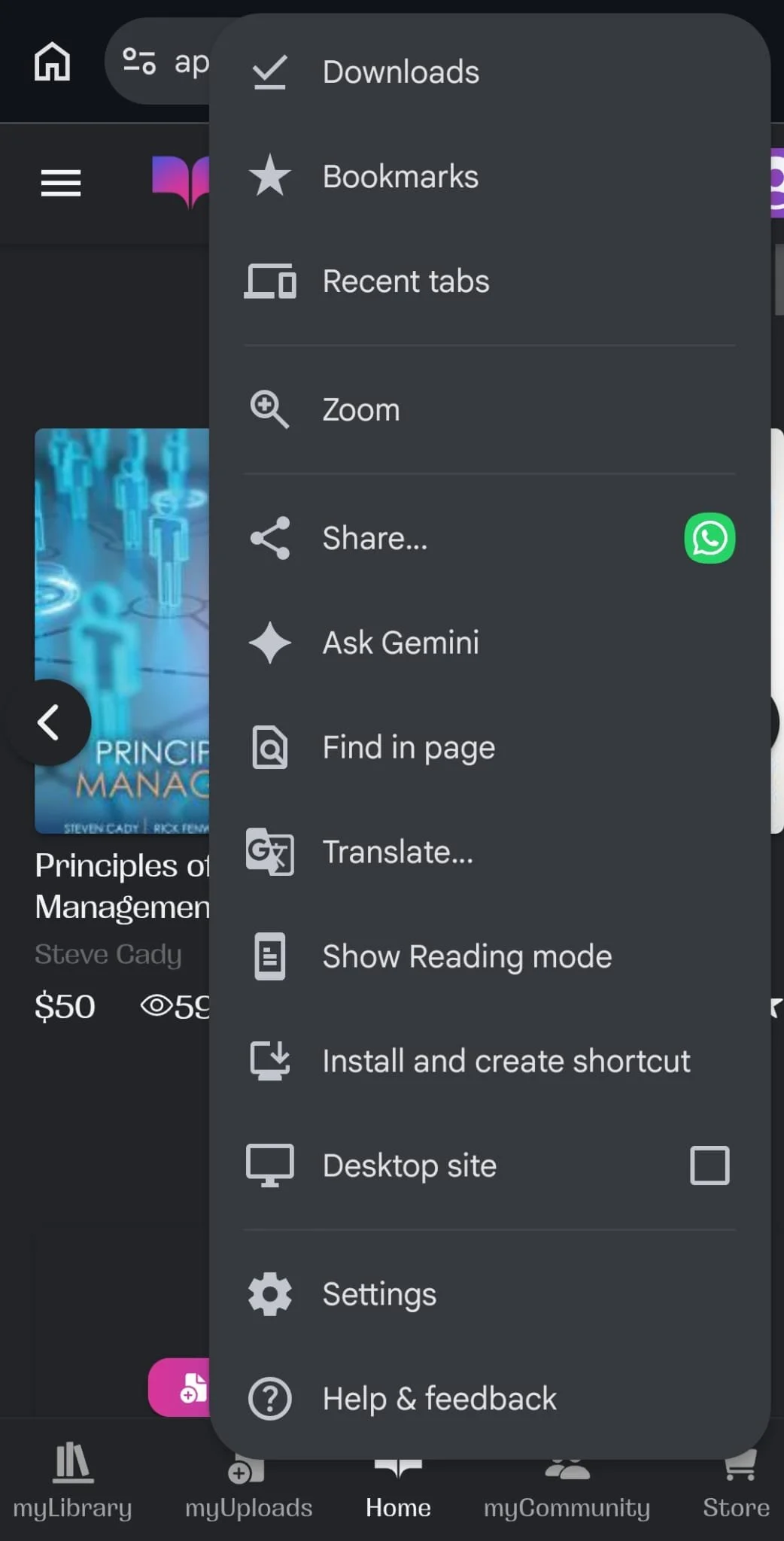
To add the app to your Android phone or tablet (please note that you can’t yet get myLibrary from the Google Play Store) simply:
Open the app in Chrome (app.wordspub.com) on your phone or tablet.
Open the browser menu (the 3-dot icon at top right).
In your browser menu (you may have to scroll down a bit), select
“Install and create shortcut.”Select our preferred option.
This places the WordsPub app icon on your phone, allowing you to interact with the app as you would with other apps on your phone/tablet.
Use the app on iOS
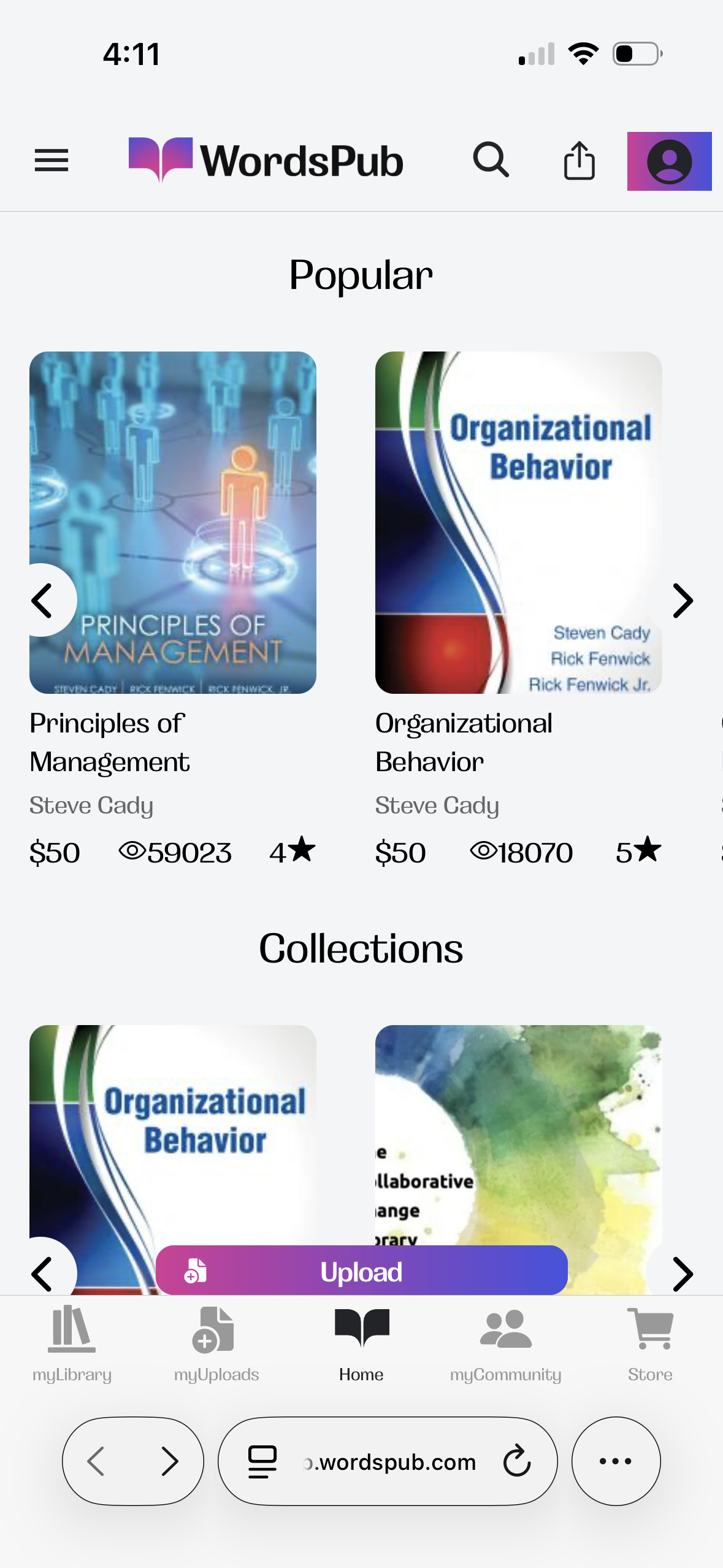
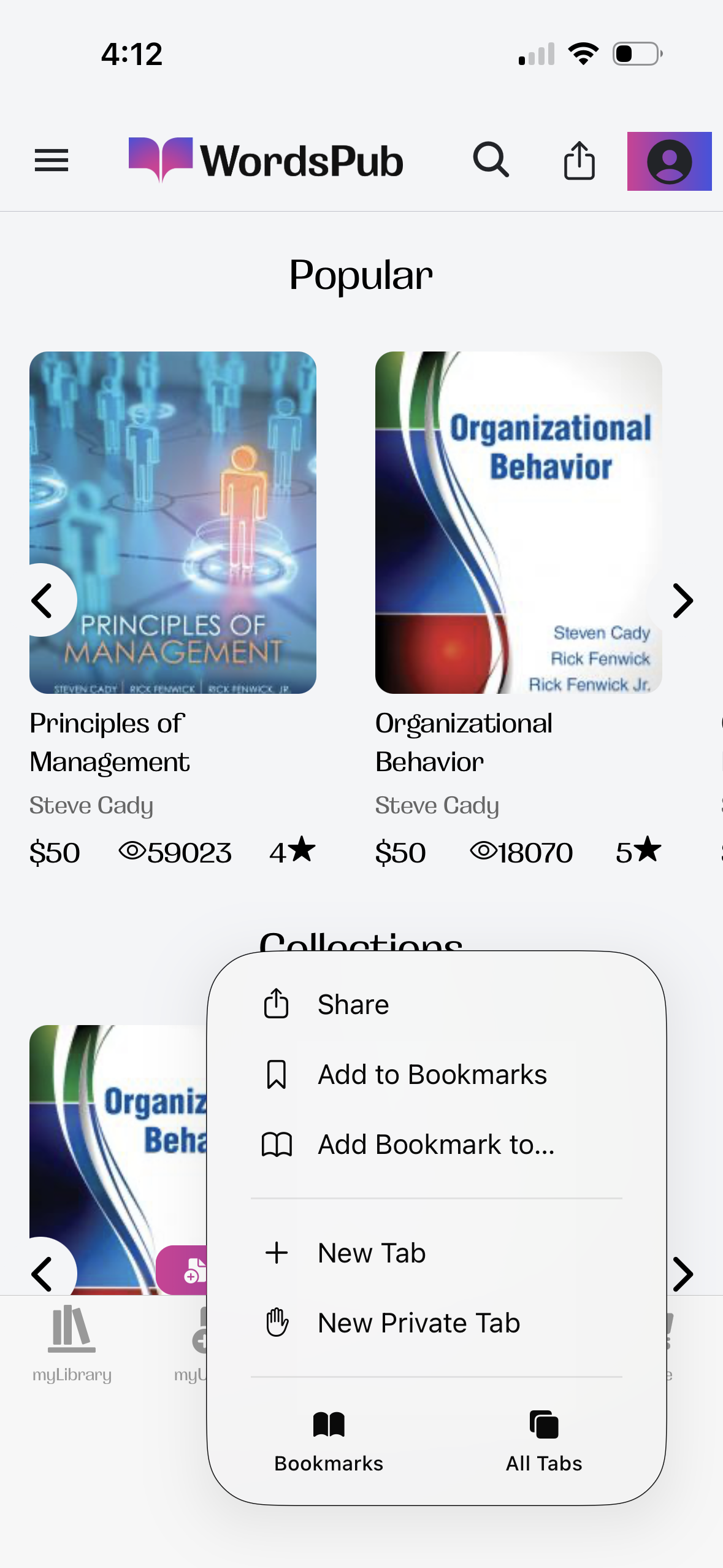
To add the app on your iPhone or iPad (please note that you can’t yet get myLibrary from the AppStore), simply:
Open the app in Safari (app.wordspub.com).
Click on the ellipsis (3-dot icon).
Click on the share icon (square icon with arrow pointing out of it at the bottom center of your screen on iPhone / near the address bar on most iPads).
Scroll down to and select “Add to Home Screen.” This places the myLibrary app-icon on your iPad/iPhone, allowing you to interact with the app as you would with other apps on your phone/tablet.
Please note that pop-ups must be enabled for most log-in dialogues.
To unsubscribe:
To unsubscribe from a collection in myLibrary, simply:
Log in to wordspub.com
Navigate to the Store;
Select “Purchased” at the top
Select 'Manage' for the content or collection you want to unsubscribe from;
And click 'UNSUBSCRIBE.'